
If you’ve been putting off running AI models on your own machine because it seems daunting or difficult, we’ve got good news: it’s now easier than ever to set up! The local LLM scene has matured fast, and there’s now a great desktop option for pretty much every type of user, whether you’re a total beginner who just wants a ChatGPT-style window with zero cloud involvement, or a developer who wants to wire local models into scripts and even your own coding agents.
We’ve spent a lot of time in and out of these apps, and in this guide we’re breaking down five of the current best desktop options for running LLMs locally. Each one takes a slightly different angle on the same core promise – your data stays on your machine, no API bills, no rate limits, and no one else reading your prompts.
Why run an LLM locally in the first place?
Before we get into the apps themselves, let’s start with why people bother in the first place when tools like ChatGPT and Claude are so readily available. The obvious one is privacy – nothing leaves your device, which matters a lot if you’re working with sensitive documents, client data, or anything you’d rather not send to a third-party server. Then there’s cost: once a model is downloaded, running it is free, no matter how many tokens you burn through. And finally there’s control – you pick the model, the quantization, the context length, and nobody can quietly change the model underneath you or shut off access.
The trade-off is hardware. You’ll want at least 16GB of RAM to have a genuinely good time, and a decent GPU (or Apple Silicon with unified memory) makes a huge difference in speed. But the good news is that the apps below have all gotten much better at both optimization and telling you what your machine can actually handle before you waste an hour downloading a model that won’t run!
With that out of the way, let’s get into it. To view any of the apps mentioned below in more detail, just tap on the image.
1. LM Studio
LM Studio has become the default answer whenever someone asks “what’s the easiest way to run an LLM on my laptop?” It’s a polished desktop app for macOS, Windows, and Linux that sits on top of llama.cpp (and MLX on Apple Silicon), and it strips away basically all the friction that used to come with local inference. You open the app, browse a built-in model catalog connected to Hugging Face, click download, and start chatting. No terminal, no manually hunting for the right GGUF file, no guessing which quantization your GPU can actually handle – LM Studio shows you the RAM and VRAM requirements up front.
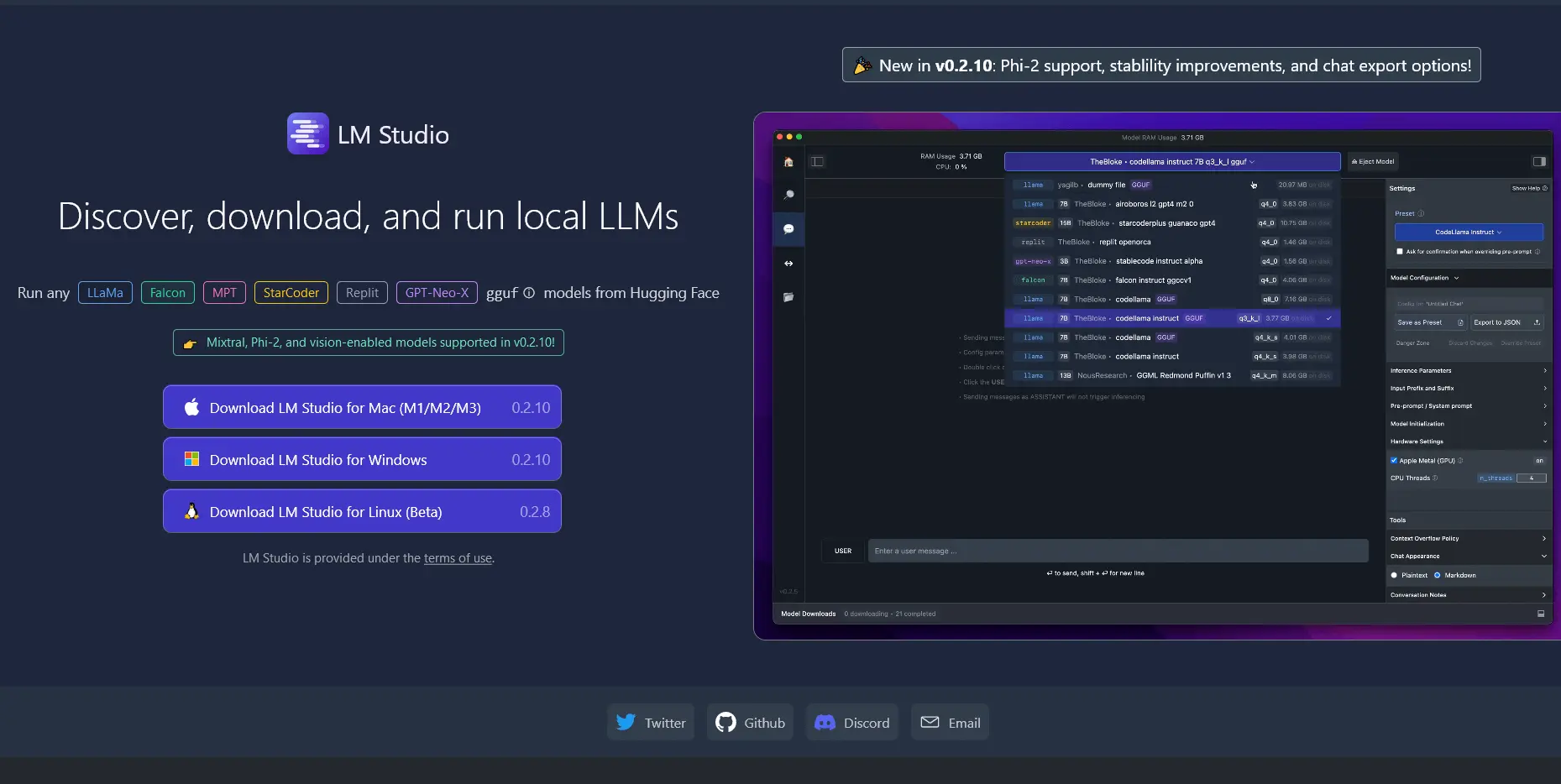
It’s worth pointing out that LM Studio isn’t open source, though the core app is free for both personal and commercial use. For most people that’s a non-issue, but if you’re a FOSS purist it might be a sticking point (more on the open-source alternative later in this list!). What you get in exchange is one of the most refined local AI interfaces around, including a one-click local server that mimics the OpenAI API, so any tool or script built for OpenAI’s API can point at your local model instead.
What LM Studio is good at:
- Zero-friction setup for beginners. The model browser alone removes most of the guesswork that used to scare people away from local AI.
- Apple Silicon performance. Its MLX backend is noticeably faster than llama.cpp-based tools on M-series Macs, which matters a lot if you’re on a MacBook.
- Local API server. It exposes an OpenAI-compatible endpoint on localhost, so you can plug it into existing apps, IDE extensions, or agent frameworks without changing your code.
- Document chat and RAG. You can drop files into a chat and have the model reference them directly, no extra setup required.
2. Ollama
Ollama took a different route to popularity: rather than leading with a fancy interface, it leaned hard into being the simplest possible way to pull and run a model from the command line. Type ollama run followed by a model name, and you’re chatting within seconds. That simplicity made it a pretty valuable tool for the local LLM ecosystem – an enormous number of third-party GUIs, browser extensions, and apps (including a couple of others on this list!) are built to talk to Ollama in the background rather than reinventing model management themselves.
Ollama has since grown well beyond a bare CLI tool. It now offers a proper desktop app experience alongside its command-line roots, and running models locally remains completely free with no limits. It’s also become a serious hub for connecting local models to coding agents and developer tools like Claude Code, VS Code, and various automation platforms, letting you swap between local and cloud models without changing your workflow.
What Ollama is good at:
- Scripting and automation. If you want to call a local model from a script, a cron job, or a backend service, Ollama’s simple API makes this genuinely easy.
- Ecosystem support. Because so many other tools default to supporting Ollama, it’s often the safest choice if you plan to experiment with multiple front-ends.
- Developer and coding-agent integrations. It plugs neatly into tools like Claude Code and VS Code, so you can point your usual coding workflow at a local model.
- Lightweight resource footprint. It doesn’t try to be everything at once, which keeps it fast and predictable even on modest hardware.
3. Unsloth
Unsloth started life as a library beloved by people fine-tuning open models faster and with less GPU memory, but it’s since grown into a full desktop app. Unsloth Desktop is open-source, free, and 100% local, and it’s one of the only tools on this list that treats running a model and training one as part of the same workflow. You can download a model, chat with it, and then, if you want to actually customize it on your own data, do that from the same app without switching tools.
Beyond text models, Unsloth Desktop has also branched into local image and video generation, supporting models like FLUX and Wan, and it can connect directly to coding agents such as Claude Code and Codex through a simple command. It’s a more ambitious app than the others here, positioning itself less as “a chat window” and more as a full local AI workspace.
What Unsloth is good at:
- Local fine-tuning. If you want to actually train or customize a model on your own data rather than just run one off the shelf, this is the app built for it.
- Multi-modal generation. Image and video generation are baked in alongside text models, which none of the other apps here really do.
- Connecting agents to your own GPU. The
unsloth startcommand makes it straightforward to plug tools like Claude Code into a model running on your hardware. - Staying current with new model releases. It’s known for shipping support for new open-weight models very quickly after they launch.
4. AnythingLLM
AnythingLLM takes the “local LLM app” idea and points it squarely at productivity rather than just chat. It’s a private, on-device AI assistant that turns your own documents into a searchable knowledge base – drop in PDFs, notes, or files, and the model can reference them without any of that data leaving your computer. It’s fully open source, MIT licensed, and has racked up a serious following on GitHub, with both a desktop app and a self-hostable multi-user version for teams who want more than a single-player setup.
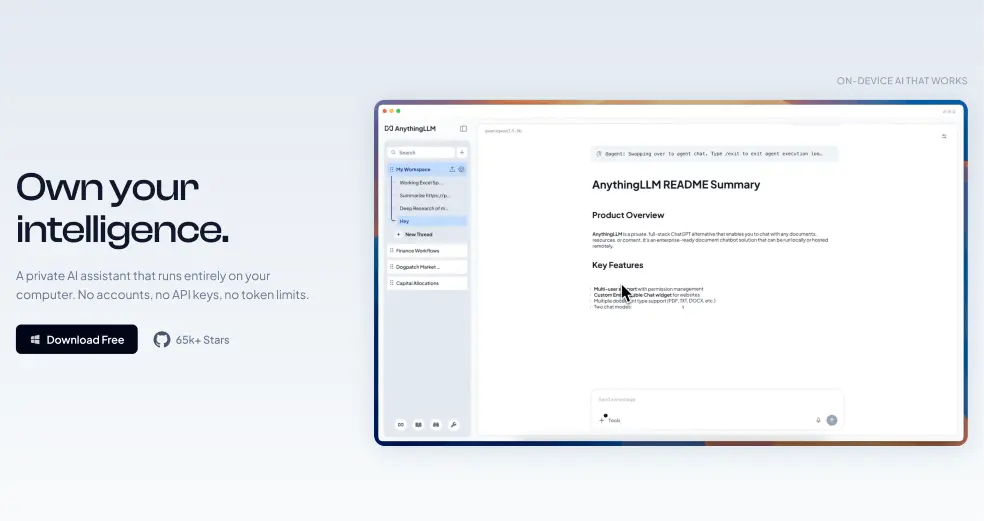
What makes AnythingLLM stand out is how much it leans into being an actual assistant rather than just an inference front-end. It can scrape and search the web, run background jobs, build custom agent skills, and even sit quietly through a meeting to transcribe and summarize it locally, with no bot joining the call and nothing sent to the cloud. It’s flexible about which model actually powers it too, so you can point it at a local runtime or bring your own backend depending on what you’ve already got set up.
What AnythingLLM is good at:
- Chatting with your own documents. Its document knowledge and RAG features are strong, and everything stays on-device.
- Building a private knowledge base. It’s less a chatbot and more a personal (or team) research assistant that remembers your files.
- Local meeting transcription. The built-in meeting assistant summarizes calls and pulls out action items without any cloud processing.
- Team and multi-user setups. The self-hosted version scales up to shared deployments if you need more than a personal tool.
5. Jan
Jan brands itself as an open-source and local ChatGPT replacement. If LM Studio’s closed-source license bothers you, Jan is the app some point to as the fully open alternative – it’s built in the open, with millions of downloads and a highly active GitHub and Discord community behind it. The core experience is nice and simple: download the desktop app, pick a model, and start chatting, with everything running locally by default.
What we like about Jan is the flexibility it gives you around models. You’re not locked into open-weight models only – Jan lets you plug in ChatGPT, Claude, Gemini, and other online models alongside local ones like Llama, Mistral, Qwen, and DeepSeek, so you can mix and match depending on the task. It’s also expanding into a broader open ecosystem beyond just the desktop chat app, with pieces aimed at more advanced agent and self-hosted setups for people who want to go further than a single chat window.
What Jan is good at:
- Being fully open source. If transparency and community governance matter to you, Jan is the most FOSS-aligned option on this list.
- Mixing local and cloud models. You’re not stuck picking one or the other – Jan lets both live side by side in the same interface.
- A clean, ChatGPT-like experience. For anyone who wants a familiar chat interface without a steep learning curve, Jan gets out of your way nicely.
- A growing agent ecosystem. Beyond the desktop app, Jan is building out more advanced tooling for people who want to self-host or run agents beyond simple chat.
So, which one should you actually pick?
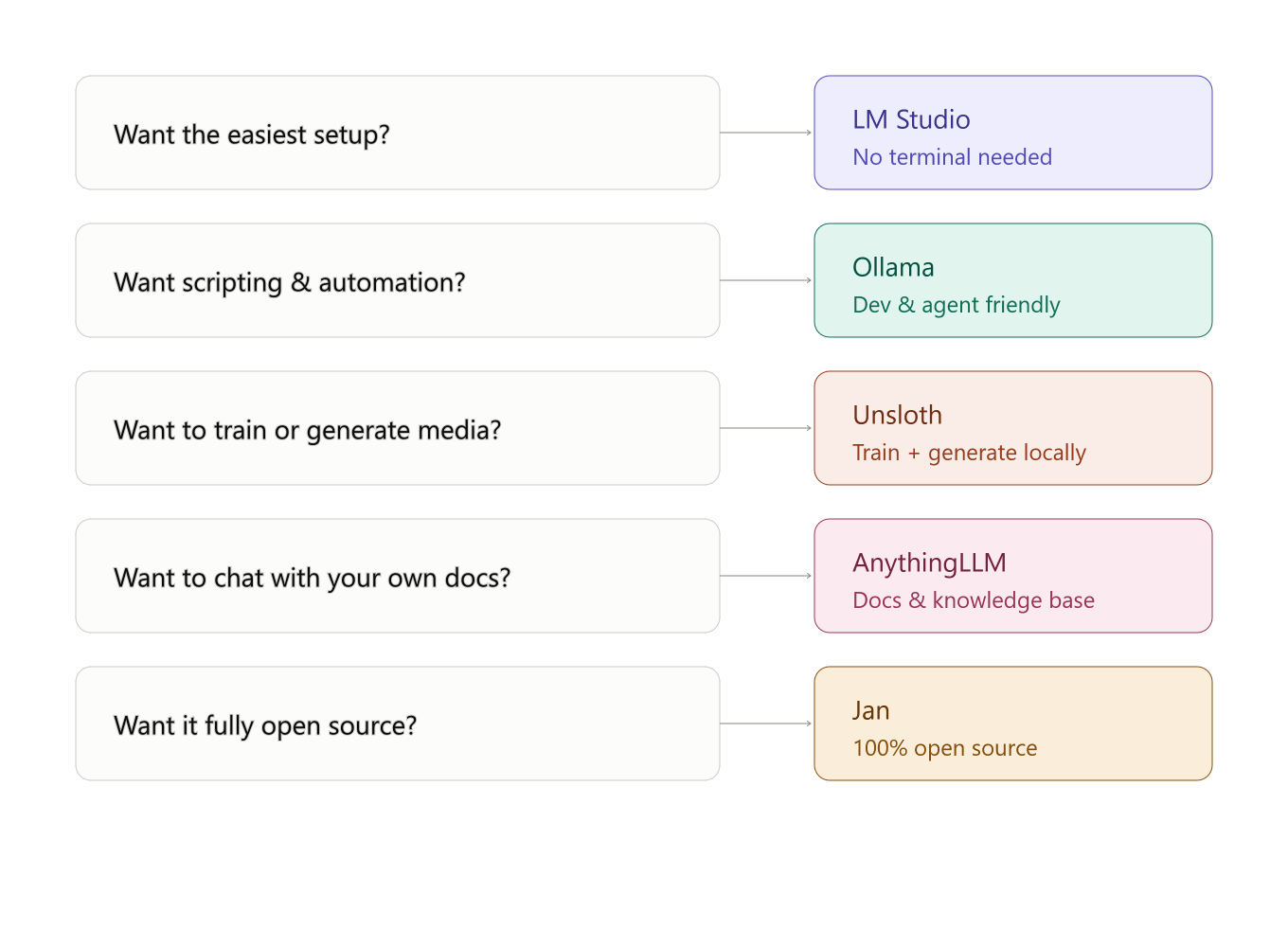
As usual, it really depends on what you’re trying to do, and there’s no problem with installing more than one! If you just want the easiest possible on-ramp to local AI, start with LM Studio. If you’re a developer who wants something scriptable and widely supported, go with Ollama. If you want to fine-tune models or generate images and video alongside your chats, Unsloth Desktop is the most ambitious pick. If your main goal is chatting with your own documents or building a private research assistant, AnythingLLM is hard to beat.
From our testing, the local LLM space has reached a point where “can I run this on my laptop” isn’t really the hard question anymore – it’s “which app fits how I actually want to use it.” It’s also worth comparing each of the apps interfaces and just going with whichever one looks the cleanest and easiest to use for you; there’s no real bad options here!

